


Glow Spinner: Finger Draw Art
4.720.00 Reviews
App Specs
- Version
- 1.1.0
- Updated On
- License
- Free
- Downloads
- 1,000,000+
- Developer
- Hypernova Limited
- Categories
- Art & Design
- Platform
- Android
Screenshots
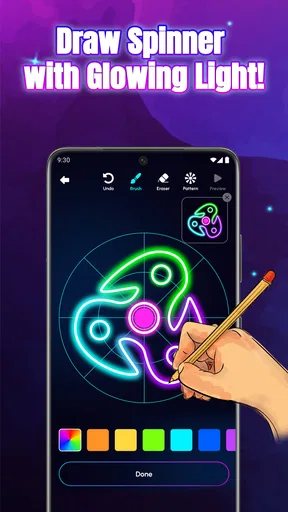
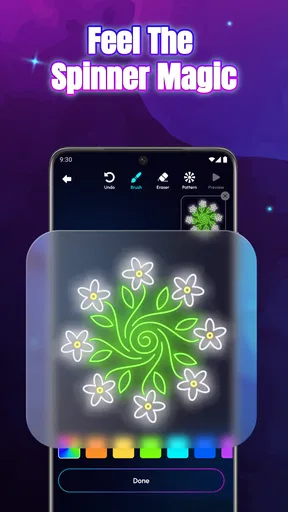
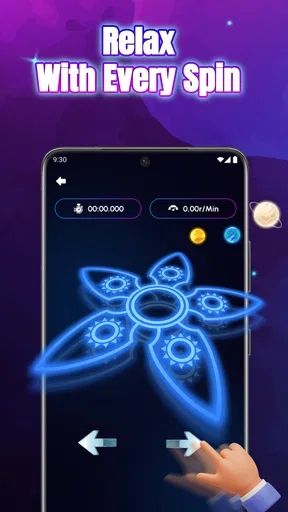
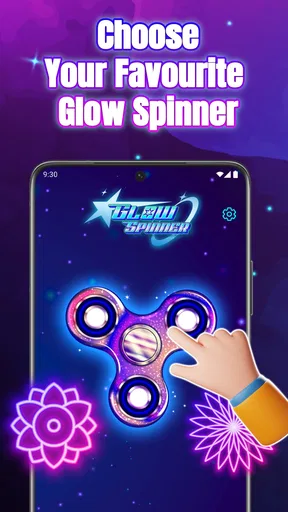
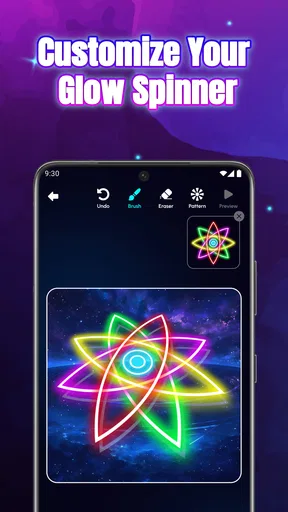
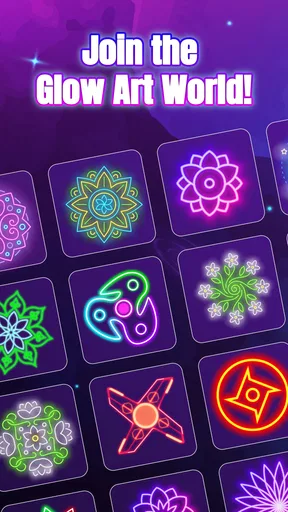
 Analysis by AppCompare
I’d treat this as a pocket sketchpad for quick, bright experiments rather than a replacement for a full drawing studio. Glow Spinner: Finger Draw Art is an art app from Hypernova Limited, and its appeal is easy to understand: make marks with a finger, watch them take on a luminous look, and enjoy the process without needing to plan a polished illustration. I find that kind of low-pressure creativity useful when I want a short break that feels more active than scrolling.
What to expect from a quick drawing session
The simple premise sets a reasonable expectation for speed: this is meant to get you making marks quickly, not to put you through a long setup process. A straightforward interface matters here because a glow effect is most satisfying when you can try it immediately. The current version is 1.1.0, and the app is free, so it is easy to try as a small creative diversion before deciding whether it belongs in your regular rotation.
For a first session, I’d keep the goal modest: test a few colors, make a loose spiral or starburst, and see how the light effect changes the feel of your lines. That gives you a quick sense of whether the visual style suits you. It is also a better way to learn than trying to produce a finished piece straight away, especially when the drawing tools are designed around playful experimentation.
When a design gets more demanding
Glow effects can make even a simple shape look lively, but detailed work asks more of both the person drawing and the device. In my experience, the app may lag a little on intricate designs, which can interrupt a careful stroke. I’d approach that as a reason to work in stages rather than as a reason to abandon the app: build a design from broad shapes first, then add smaller accents only if the response still feels comfortable.
That workflow also helps keep the image readable. A bright line can attract attention quickly, so layering too many colors and effects may make a small drawing feel busy. I’d choose one dominant color, use a second to emphasize a focal point, and leave some dark space around the marks. The restraint is useful here: the glow itself supplies much of the visual drama.
Reliability and the value of a light workflow
The undo and redo controls are welcome because finger drawing is imprecise by nature. I like having room to test a stroke without treating every mistake as permanent. When I’m experimenting, I’d save a version I like before trying a more complicated variation; that gives me a simple fallback if the next round gets messy. The app’s save option makes keeping a personal copy possible, while sharing gives finished work a quick route to friends or social feeds.
I would not plan an elaborate drawing session around uninterrupted performance, though. The occasional slowdown on intricate designs makes a compact workflow the safer choice: sketch the main form, check how it looks, then add detail gradually. If the screen begins to feel less responsive, pausing and returning to simpler strokes is more practical than forcing a dense composition. That is a sensible way to protect the fun part of the experience.
Worth Reading Before You Choose

EA SPORTS FC Mobile 26 Is a Bigger Football Game, but It Takes Time

Flipboard Shows What News Apps Must Do Beyond the Feed

Switching to Android Auto Means Rethinking Your Driving Routine

Google Calendar Makes a Crowded Week Easier to Manage

Ludo King Makes the Most of the Minutes Between Plans

Baby Panda World Brings Quick Play to Modern Phones, but Its Game Library Feels Busy
Choosing it for the right device and purpose
The app is rated for Everyone and lists Android 7.0 as its minimum operating-system requirement. That gives Android users a useful compatibility check before installing. Since the drawing happens directly on a touchscreen, screen size and finger comfort also affect the experience: a compact phone is convenient for spontaneous doodling, while a larger display can make placement easier. I’d keep expectations realistic on an older or less capable device, particularly if a drawing becomes busy, because the app’s more demanding moments are exactly where I’ve noticed lag.
First Impressions Matter
Upon launching Glow Spinner: Finger Draw Art, I was immediately greeted with a vibrant splash screen that’s as inviting as it is dazzling. The interface is sleek and straightforward, which is always a plus in my book. Nothing’s worse than getting lost in a sea of buttons when all you want to do is let your creativity flow.
The app promises to transform your finger swipes into glowing masterpieces, and I must admit, it does deliver on that front. The colors are bright, and the glow effects add a magical touch to your doodles. It’s like having a mini art studio right in your pocket.
The Creative Process
So, what’s it like to actually use the app? Well, it’s pretty intuitive. You’ve got a range of brushes and glow effects to choose from, and the app responds well to different pressures on the screen. The sensitivity is on point, making it feel almost like you’re drawing on a real canvas. Plus, the option to undo and redo your strokes is a godsend for perfectionists like me.
One feature I really enjoyed is the ability to layer different colors and effects. This gives your art a depth that’s hard to achieve with traditional finger painting apps. It’s like having multiple canvases in one, and the results can be quite stunning.
Making the glow work for your idea
I get the most out of layered color when I give each layer a job instead of adding effects just because they are available. A bright outline can define the subject, while a softer-looking second color can suggest movement or give a focal point more presence. For example, a quick abstract burst can feel energetic with a few deliberate lines; adding marks everywhere tends to blur that impression. This is a small design choice, but it makes the difference between a vivid doodle and a crowded one.
There is also a useful distinction between drawing for yourself and drawing to share. On a phone, a design that looks rich while you are making it can become visually dense when seen as a small image. I’d zoom out mentally by holding the phone at a normal viewing distance before saving: if the main shape still reads, the composition is probably doing its job. If it does not, undo a few details and let the strongest lines carry the image.
Everyday uses beyond aimless doodling
A realistic way to use this app is during a short pause in the day: while waiting for a friend, winding down after work, or taking a screen break that still gives your hands something to do. I might make a quick color study, a glowing pattern, or a playful card-like image to send to someone. The appeal is not that every sketch has to become a finished artwork; it is that the drawing process can be enjoyable even when the result is deliberately casual.
It can also work as a low-pressure creative prompt for someone who feels stuck staring at a blank page. Rather than beginning with a complicated subject, start with a single loop, then repeat or cross it with another color. The app’s layered effects give those basic gestures enough visual character to spark a direction. I would recommend it to curious beginners and casual doodlers who want immediate visual feedback, but not to someone who needs precise line control for commissioned work or a carefully refined illustration.
Where it sits among drawing alternatives
Compared with a conventional sketching app, the strongest reason to choose this one is its glowing, playful look. A general-purpose drawing tool is usually the better fit when you need a broad set of precise controls or want to develop a detailed image through a more deliberate process. A basic finger-painting app may be simpler, but it may not give a doodle the same luminous character. I see this app as a focused alternative: it makes sense when the effect is part of the fun, and less sense when the effect is only a small extra in a larger art workflow.
That focus is also a trade-off. A person who wants to practice realistic proportions, build a complex illustration, or fine-tune every mark may find the experience too casual. Someone looking for a quick way to experiment with color and light is more likely to appreciate it. Before committing to a long session, I’d try a small drawing and check whether the available controls match the amount of precision I want.
Sharing Your Masterpiece
Once you’ve created something you’re proud of, sharing it with friends is a breeze. The app integrates seamlessly with social media platforms, letting you post your art directly to your feeds. It’s a great way to show off your skills and maybe even inspire others to give it a try.
There’s also an option to save your artwork to your device, which is perfect for those who want to keep a personal gallery. Whether you’re looking to decorate your digital space or just want a keepsake, it’s nice to have that flexibility.
A practical save-and-share routine
For anything I might want to keep, I’d save before experimenting with a new set of colors or effects. That simple habit preserves a version I already like and makes it easier to take creative risks afterward. If I’m drawing something intended for a friend, I’d also check the image once more before sharing: a design that looks clear on the canvas should still have a recognizable focal point when viewed quickly in a feed.
The sharing option is convenient when the goal is to show a finished doodle, but I would not treat social posting as the main reason to use the app. Its best moments happen while making the art, and saving locally is just as useful if I want to keep a private collection or revisit an idea later. That distinction helps set expectations: this is a casual creation tool, not a full portfolio system.
Room for Improvement?
While Glow Spinner: Finger Draw Art is a lot of fun, there are a few areas where it could improve. For starters, the app could benefit from a more extensive tutorial for first-time users. Although it’s easy to pick up, a guided tour of the features could help users unlock its full potential.
I also noticed that the app can lag a bit when working on more intricate designs. It’s not a deal-breaker, but it can disrupt the creative flow. A bit of optimization in future updates could make the experience even smoother.
Who will enjoy it, and who may want something else
The audience I’d point toward this app is someone who likes making colorful marks but does not want drawing to feel like homework. It suits short sessions, spontaneous ideas, and people who enjoy a striking visual finish more than technical control. Its Everyone age rating also makes it approachable as a casual creative activity, though younger users may still benefit from an adult showing them how to save or share artwork.
I would steer a serious digital illustrator toward a more comprehensive art tool if their priority is exact control, sustained detailed work, or a broader range of production options. The occasional lag on intricate designs reinforces that distinction. If you are mainly curious about the glowing style, though, the free price makes trying it a low-commitment decision. Its 4.6 average from around 7,000 ratings and more than a million installs suggest it has attracted a sizable audience, but I’d still judge it by whether its particular drawing feel works for you.
What I’d check before settling in
Before a longer session, I’d make sure the device meets the Android 7.0 requirement, then try a small test drawing rather than beginning with a complicated piece. That quick check answers two practical questions: does the interface feel comfortable on this screen, and does the response stay pleasant once colors and effects build up? If both answers are yes, the app is well suited to relaxed experimentation. If fine detail is the whole point of the project, I’d switch to a tool designed for more controlled illustration instead of fighting the format.
For a casual user, the key question is whether artwork can be kept and shared in the way they expect. Saving to the device and sharing with friends are part of the experience, so it can serve both private doodling and quick social creativity. I’d still save a favorite early and test the sharing flow with a piece I do not mind posting, rather than leaving an important design until the last moment. That cautious routine is useful whenever a drawing matters more than a throwaway experiment.
Final Thoughts
All in all, Glow Spinner: Finger Draw Art is a delightful app for anyone looking to unleash their inner artist. It’s user-friendly, visually appealing, and offers just enough features to keep things interesting without overwhelming you. Whether you’re a seasoned artist or just someone who loves to doodle, it’s a great way to pass the time and create something beautiful.
If you’re ready to let your fingers do the drawing and light up your creative side, give this app a whirl. Who knows? You might just discover a new favorite pastime. Happy drawing, and may your art glow as brightly as your imagination!
Pros
- Easy to use with intuitive controls.
- Wide variety of color options.
- Supports saving and sharing art.
- Includes relaxing background music.
- No ads interrupting the experience.
Cons
- Limited canvas size options.
- No undo feature for mistakes.
- Requires internet for full features.
- Lacks advanced drawing tools.
- Frequent updates needed for bugs.
FAQs for Glow Spinner: Finger Draw Art
What is Glow Spinner: Finger Draw Art?
Glow Spinner: Finger Draw Art is an engaging app that allows users to create mesmerizing art using their fingers. The app combines creativity with fun by letting you draw glowing patterns and shapes, which can be spun and animated. It's perfect for both kids and adults looking to explore their artistic side.
Is Glow Spinner: Finger Draw Art suitable for all ages?
Yes, Glow Spinner: Finger Draw Art is designed for users of all ages. Its intuitive interface makes it easy for children to use, while its diverse features offer enough complexity to keep adults entertained. It’s a great way for families to bond over creative activities and share unique artwork.
What devices are compatible with Glow Spinner: Finger Draw Art?
Glow Spinner: Finger Draw Art is available for both Android and iOS devices. It supports a wide range of smartphones and tablets, ensuring that users can enjoy the app on their preferred devices. Make sure your device is updated to the latest operating system for optimal performance.
Are there any in-app purchases or ads in Glow Spinner: Finger Draw Art?
Glow Spinner: Finger Draw Art offers a free version with ads, which helps support the developers. There are also in-app purchases available that allow users to remove ads and unlock additional features, such as exclusive glow effects and advanced drawing tools, to enhance the creative experience.
How does Glow Spinner: Finger Draw Art enhance creativity?
Glow Spinner: Finger Draw Art enhances creativity by providing users with a wide array of tools and colors to experiment with. The glow effect and spinning feature add a unique dimension to the artwork, encouraging users to think outside the box. It’s a playful way to develop artistic skills and explore new ideas.


